
A form asks for a name, a description, and a website. Instead of writing each answer from scratch, let AIWriterChatGPT read the form and prepare suggestions. You review the content and click Fill when it is ready.
This walkthrough uses a fictional product, Garden Notes. The example webpage already says that it helps gardeners plan planting and keep garden notes together. Its website URL is unknown, so that field stays blank.
The images below are illustrative examples, not screenshots. They show the workflow without using a real customer’s form or information.
1. Open the page and choose Fill
Install AIWriterChatGPT from the Chrome Web Store, sign in, and open its Chrome side panel beside your form. Choose Fill.
If the site needs permission, the panel shows its address and an Allow this site button. Confirm access for that website; you do not need to type its address.
Once your account is ready and usage is available, Fill automatically reads the supported fields and nearby context, then starts drafting. You do not need to write an instruction before it begins.
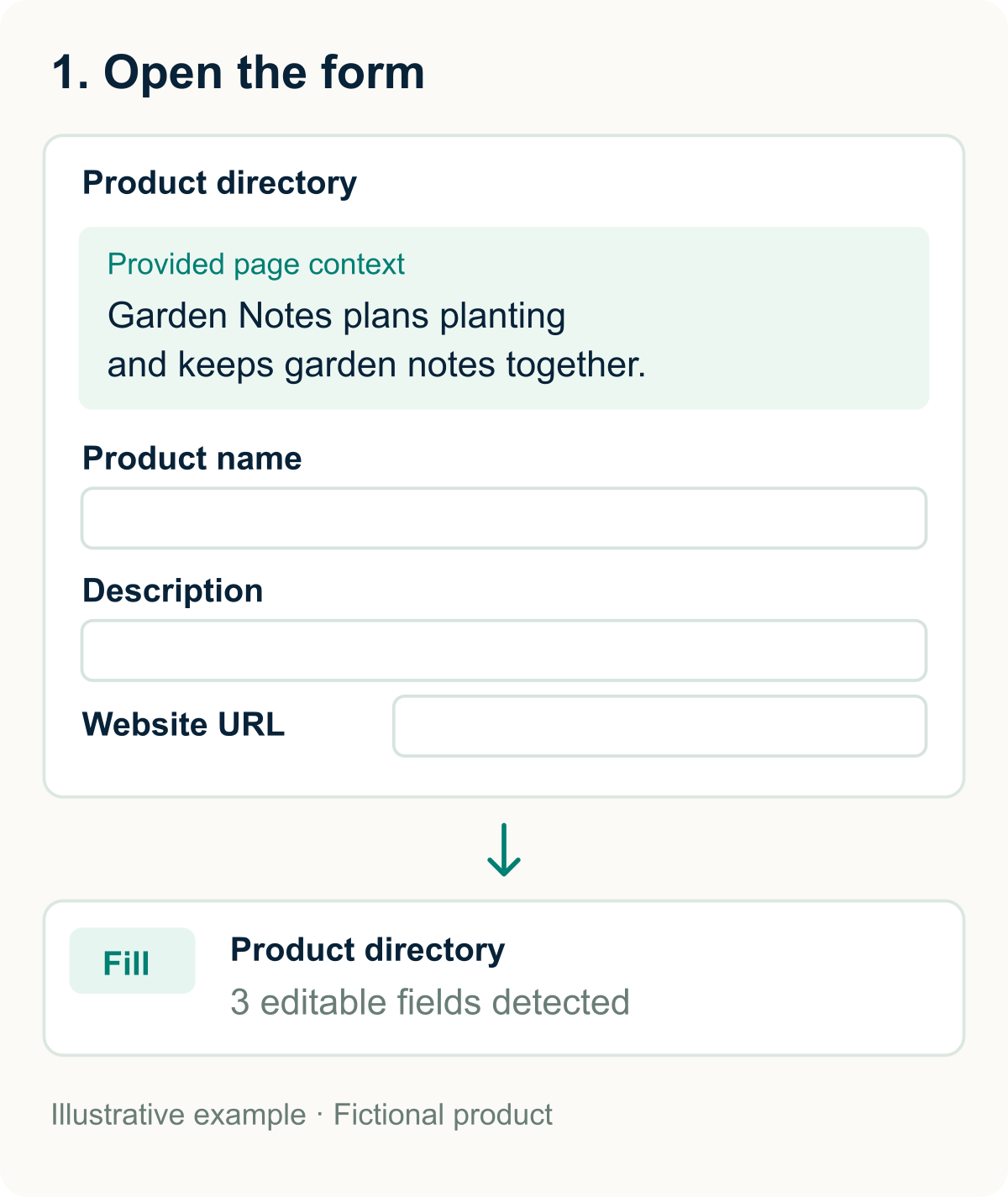
Illustration 1 — Fictional product. The page provides the facts; Fill identifies the form.
2. Review the generated content
For this example, Fill can suggest Garden Notes as the product name and draft a description such as:
Plan your planting and keep your garden notes in one place with Garden Notes.
The website URL remains empty because the page does not provide it. Supply the real URL if you know it; do not use a made-up address just to complete the form.
Valid suggestions for empty fields are included automatically. You can edit them directly, and a valid missing detail you add is included without another checkbox. Fields that already contain content require an explicit Replace existing content choice before they can be overwritten.
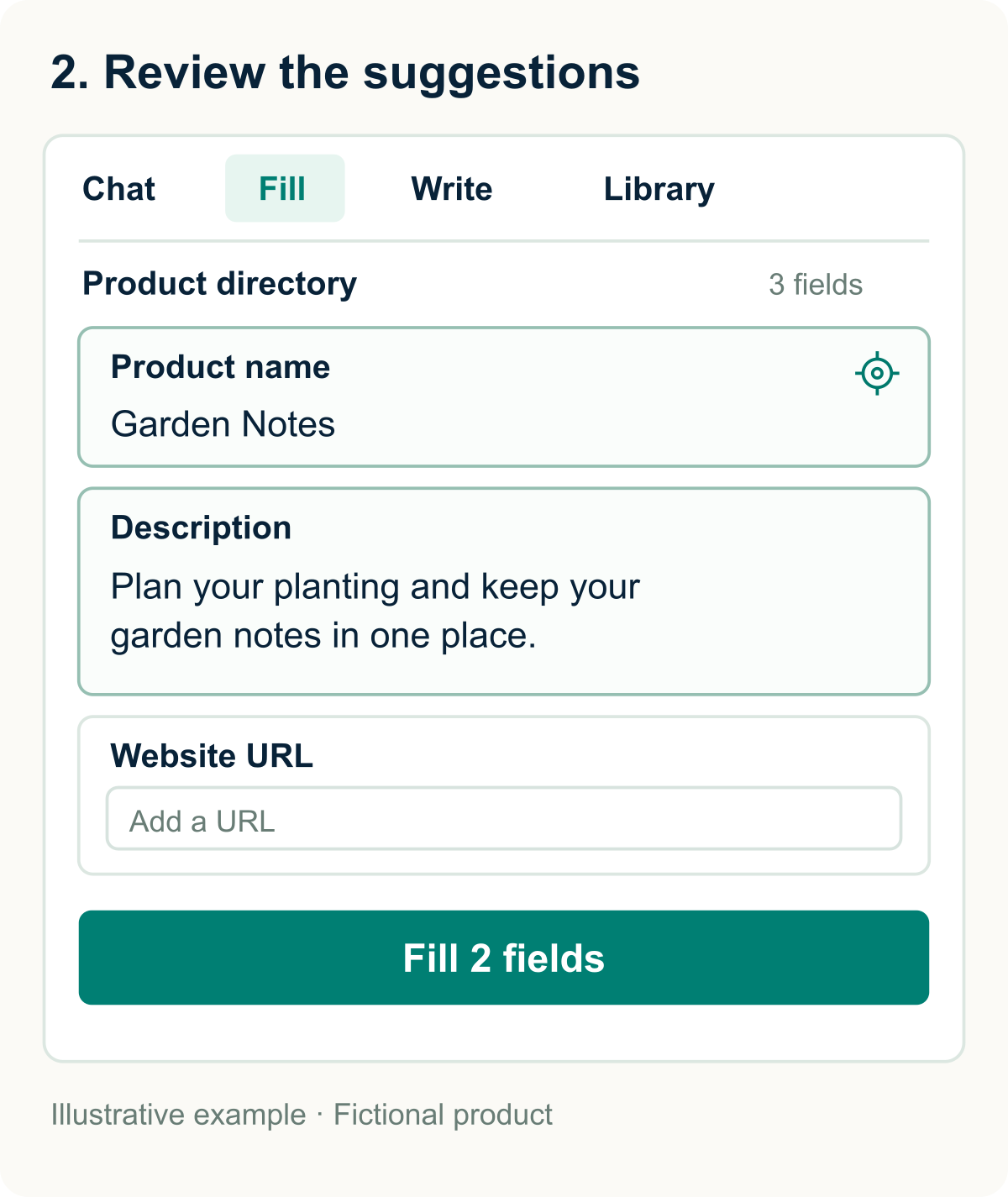
Illustration 2 — Fictional product. Two fields are ready; a genuinely missing fact is left for you.
3. Click Fill, then check the webpage
Click Fill 2 fields to apply the two ready suggestions in this example. Check the actual form afterward. The unknown URL stays blank, and Submit has not been clicked.
Successful, unchanged fields are marked filled and excluded from the next fill action. If you edit a suggestion, it becomes ready again. If the webpage changes, read it again before continuing rather than forcing an old suggestion into a changed field.
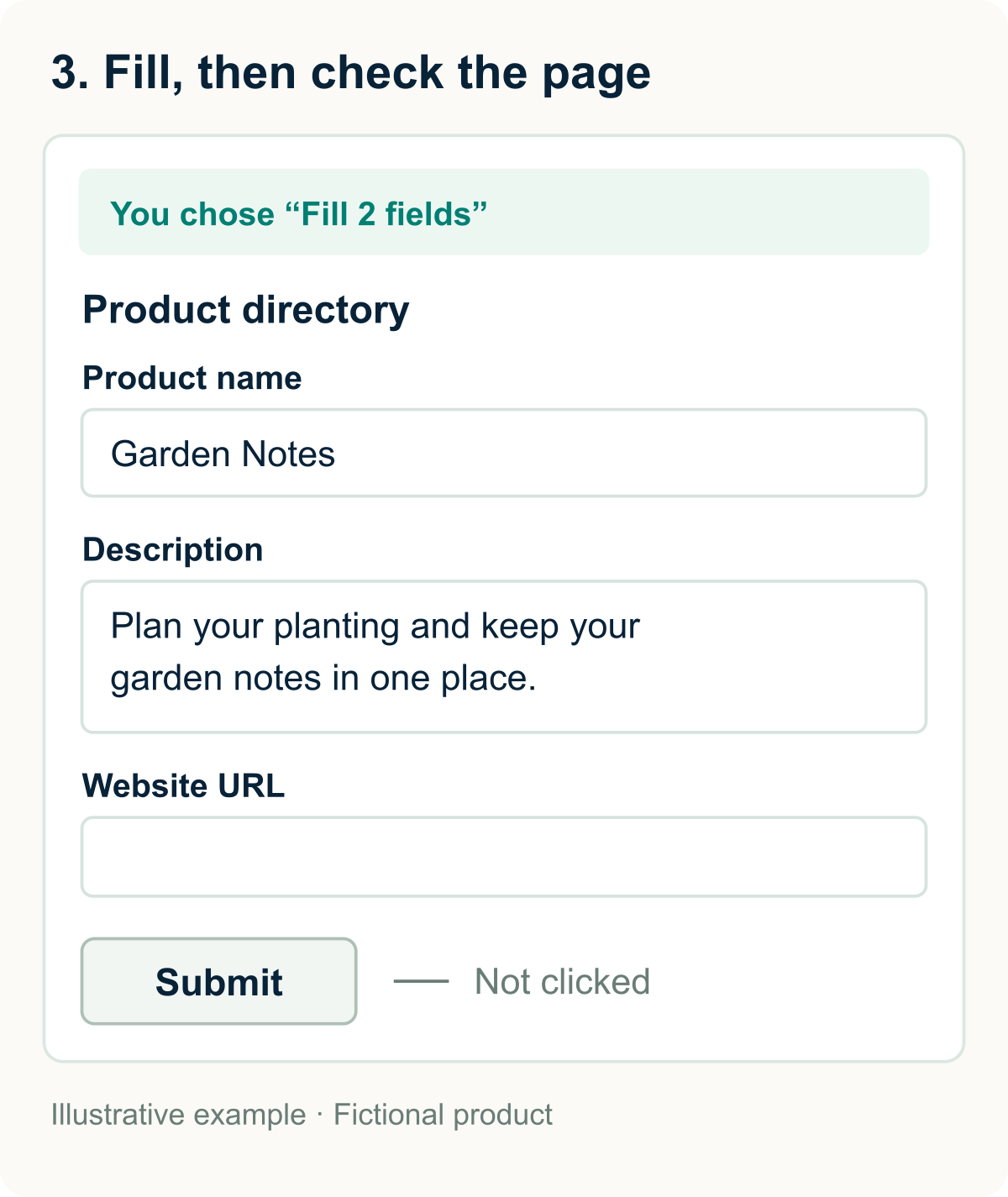
Illustration 3 — Fictional product. You confirm the fill; you still decide when to submit.
Some websites save field changes automatically, even before submission. Review the destination page’s behavior before applying content.
What to expect
Fill supports visible fields in the main page. Embedded forms and complex editors may need manual entry. Passwords, payment details, verification codes, uploads, and hidden fields are skipped.
Page context and field contents used for AI generation are sent to the service; see the Privacy Policy. Chat, Fill, and Write share limited free text-generation usage, rather than a separate daily filling allowance.
Explore Chat, Fill, and Write, or use the same side panel to draft an email with AI.